USB Switches: Sharing One Keyboard Between Two Computers
Two laptops, one keyboard, forty unplugs a day
The work laptop sits on the left. The personal one sits on the right. There is exactly one decent mechanical keyboard on the desk, one mouse that fits your hand, and one printer. So every time you switch machines you reach behind the monitor, pull two USB plugs, and feel around for the ports on the other side. Do that four times a day for a year and you have spent real hours on it, plus whatever the ports cost in wear.
The usual response is to buy a second keyboard and mouse and give up half the desk. A USB switch is the other answer, and it costs less than the spare keyboard.
What a USB switch actually does
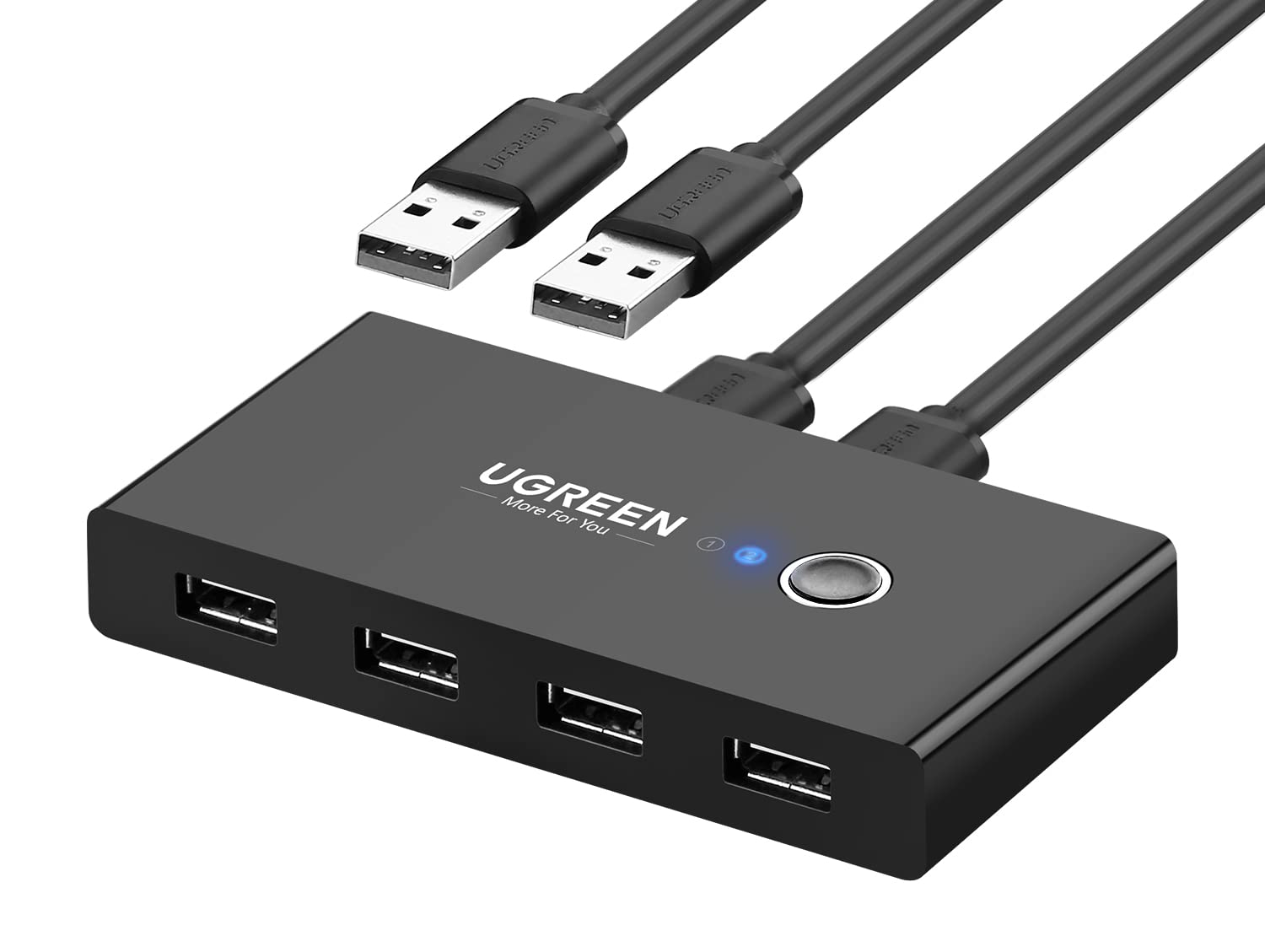
A USB switch is a small box with two upstream ports and several downstream ones. Both computers connect to the upstream ports with USB cables. Your keyboard, mouse, printer, webcam or drive plug into the downstream ports. Inside, a set of electronic switches physically routes the downstream ports to one upstream host at a time. Press the button and the whole set of devices disconnects from one machine and enumerates on the other.
To each computer, this looks exactly like someone unplugged the devices and plugged them in elsewhere, because functionally that is what happened. There is no software, no driver, and nothing installed on either machine. That is the main appeal: it works identically with Windows, macOS, Linux, a Raspberry Pi, or a company laptop locked down so hard you cannot install anything.
This is not the same thing as a KVM switch, though people use the terms loosely. A KVM also routes video, which means HDMI or DisplayPort handling, bandwidth limits, resolution negotiation and a much higher price. A plain USB switch leaves video alone. If both your machines already drive the monitor some other way, or you use two monitors, or you just switch the monitor input with its own buttons, you do not need the video half and should not pay for it.
The specs worth checking
Port count. Four downstream ports sounds generous until you count: keyboard, mouse, headset dongle, and you are full before the printer. Count your actual peripherals before you buy, and remember you can hang a cheap unpowered hub off one port for low-draw devices.
USB 2.0 versus 3.0. USB 2.0 tops out around 480 Mbps. For a keyboard, mouse, printer or webcam this is more than enough and always will be, since those devices send almost no data. Where 2.0 hurts is external SSDs and card readers, where you will feel every megabyte. If your reason for buying is sharing a fast drive between two machines, pay for 3.0. If it is keyboard and mouse, 2.0 is the sensible, cheaper choice.
How it is powered. Most of these draw power from the connected computer over the USB cable. That is fine for input devices. Anything with a motor or a heater, like a portable hard disk or a printer, may want its own supply, and some switches include a socket for one.
The button. A physical button on a cable extension is much better than a button on the box itself, because the box usually ends up behind the monitor. Some units support a keyboard shortcut instead. Both are fine; a button you have to reach for is not.
Where it genuinely helps
The clear win is the two-machine desk: work laptop plus personal desktop, or a Mac plus a Windows box for testing. It is also very good if you have a good keyboard you actually care about and no interest in owning a second one.
It quietly solves a printer problem too. Shared network printers in an Indian home setup are frequently a nuisance, and having the printer simply follow whichever computer you are using sidesteps the whole driver-and-network conversation.
And it works when your employer's laptop refuses every piece of software you try to install. Hardware switching needs no permission from IT.
Where it disappoints
Switching is not instant. Expect roughly one to three seconds while the devices re-enumerate on the new host. For most work this is invisible. If you were planning to flick between machines mid-sentence, you will notice it every time.
Some Bluetooth dongles and gaming receivers behave badly across a switch, occasionally needing a re-pair or dropping input for a moment. Wired keyboards and mice are far more reliable through one of these than wireless receivers are.
External drives are the real hazard. Switching while a drive is writing is the same as yanking the cable out. Eject properly first, every time, or eventually you will corrupt something. Honestly, keep drives off the switch and plugged directly into whichever machine needs them.
Cable clutter also goes up before it goes down. You are adding two upstream cables and a box to the desk. It ends tidier than two full peripheral sets, but it is not a cable-reduction device.
Practical setup notes
Put the box where the button is reachable, not where the cables are shortest. Velcro it under the desk lip if the button is on a pigtail.
Plug the keyboard into port 1. If a switch ever partially fails or a port goes flaky, you want the device you need to diagnose the problem to be on the most reliable port.
Keep the upstream cables short. USB 2.0 is specified to five metres, but signal quality on cheap cables degrades well before that, and a marginal cable produces intermittent input dropouts that are miserable to trace.
If you use a laptop dock, decide which side the switch lives on. Chaining a USB switch through a dock through a hub works until it does not, and the failures are maddeningly intermittent.
The one we have listed
We have the UGREEN 4-Port USB 2.0 Switch listed at Rs 1,177 on Amazon.in, rated 4.5 stars across 10,234 ratings. Four USB devices go in, two computers connect, and one button press hands the whole set to the other machine.
Ten thousand ratings at 4.5 is unusually solid for a category full of anonymous boxes, and it is the reason we picked this one over cheaper listings. The tradeoff is plainly stated in the name: it is USB 2.0, so treat it as a keyboard, mouse and printer switch and not a drive switch.
Skip it if you only ever use one computer, if your two machines are in different rooms, or if you need fast storage shared between them. Skip it also if you need video switching, since that is a KVM and a different purchase.
If your problem is really about ports rather than machines, a USB-C hub docking station is the thing you want instead. And if the desk itself is the mess, the no-drill under-desk cable tray is a cheap fix.
Common questions
Is a USB switch the same as a KVM switch?
No. A KVM also switches the monitor signal. A USB switch handles only the USB devices, which makes it cheaper and simpler if your video is already sorted.
Will USB 2.0 slow down my keyboard or mouse?
No. Input devices use a tiny fraction of USB 2.0 bandwidth. The limit only bites on drives and high-resolution webcams.
Can I share an external hard disk through it?
You can, but you should not casually. Speeds are capped and switching mid-write risks corruption. Eject before every switch, or keep drives off the switch.
Does it need drivers or software?
No. It is hardware switching, so it works with any operating system and with locked-down work laptops.
Disclosure: TechBelievers lists products from Amazon.in and other stores as an affiliate. If you buy through our links we may earn a commission, at no extra cost to you. Prices are checked periodically and change often on the store's own site.